Documentation and setup

Lookya Lookbooks & Shop the Look

Everything you need to set up, customize, and troubleshoot the Lookya App — from first install to advanced settings. Use the sidebar to jump straight to the topic you need.

Enable the app embed block

If you don’t enable the app embed block the app can’t display the Lookbooks on your store.
To enable this go to Online Store > Themes > Click Edit Theme next to your current Theme.

Now you are in the theme editor. Click App Embeds at the very left > search for the app block with the name Lookya > Enable the toggle > Click Save at the top right.

This is it.

Please Note:

It’s possible that the app embed block is automatically activated for you. In this case the checkbox in the onboarding will already be checked and you can skip this step.

Lookbooks

You see an overview of all your lookbooks on the homepage.

Here you see a list of all the lookbooks you have added and you can duplicate, edit and delete lookbooks here.

Add Lookbooks

To add a lookbook to Lookya you can click on the “Create Loobook” button on the homepage.

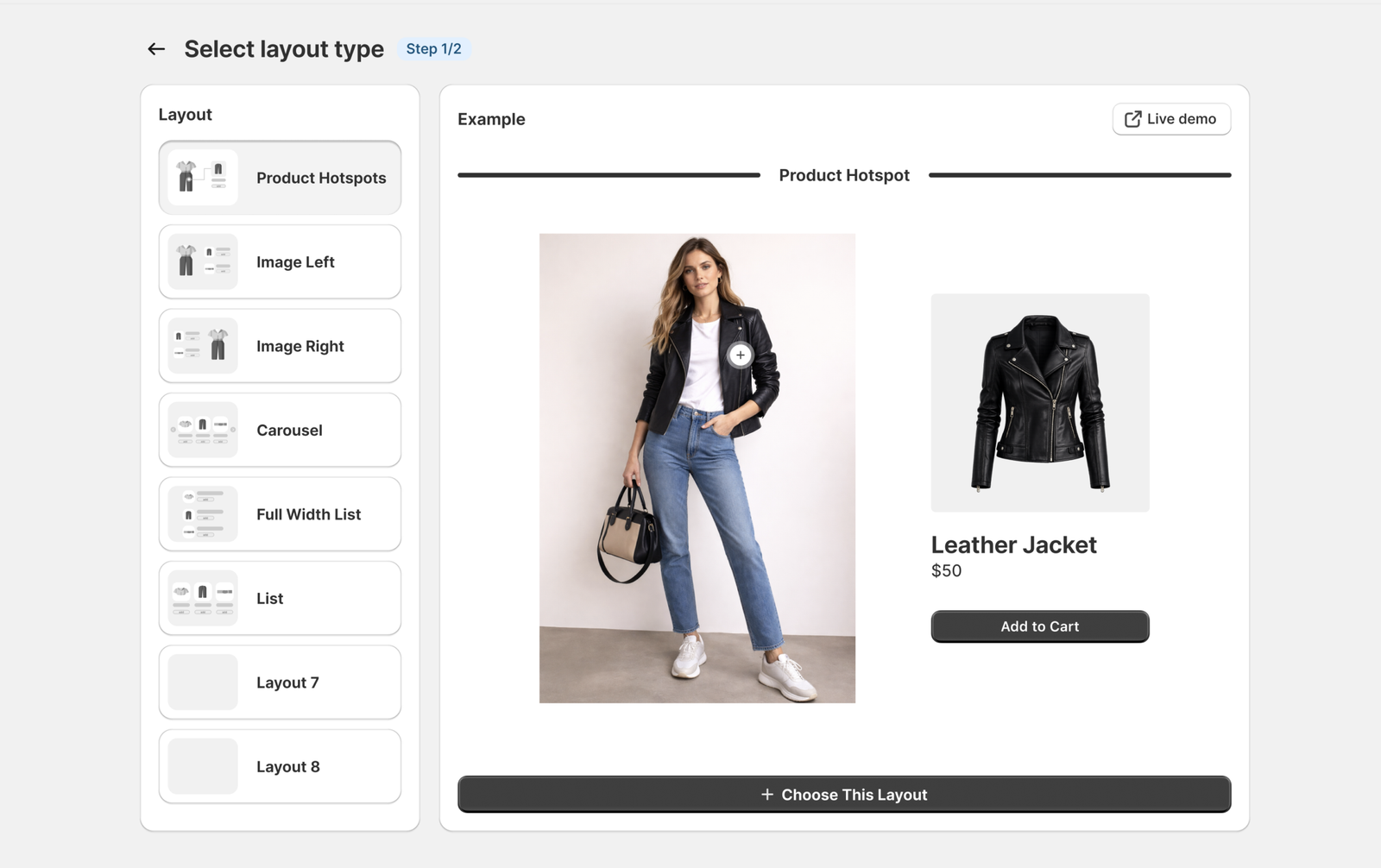
In the first step you can choose from one of the layouts for this lookbook.

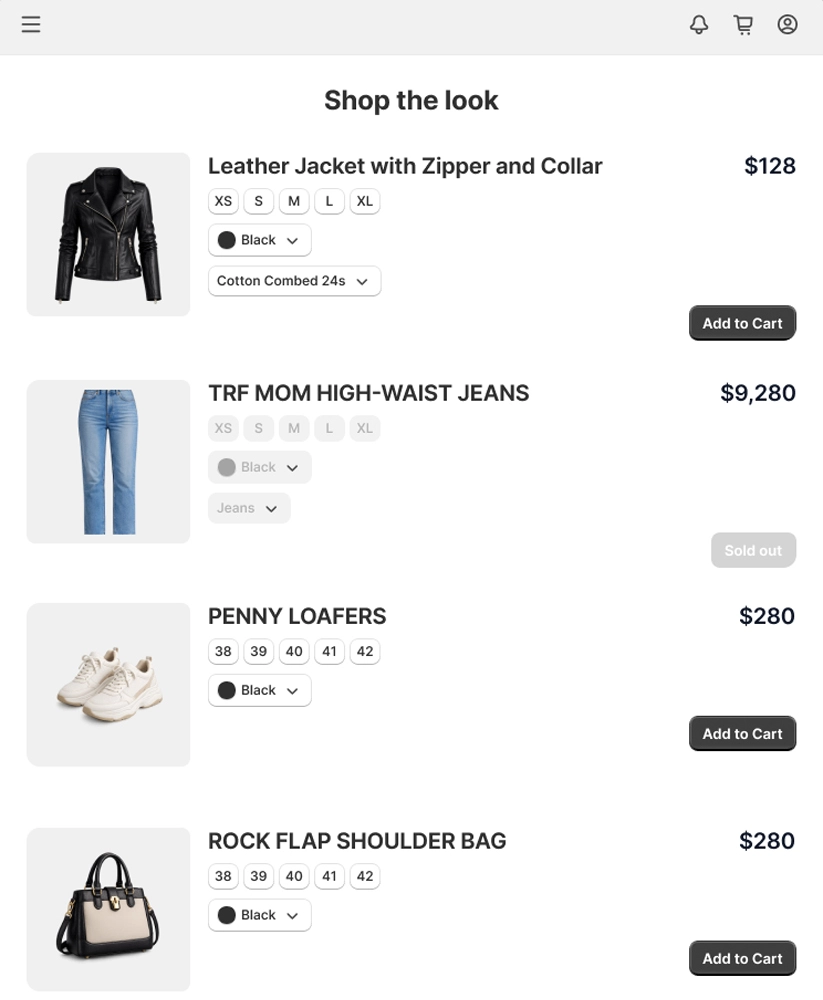
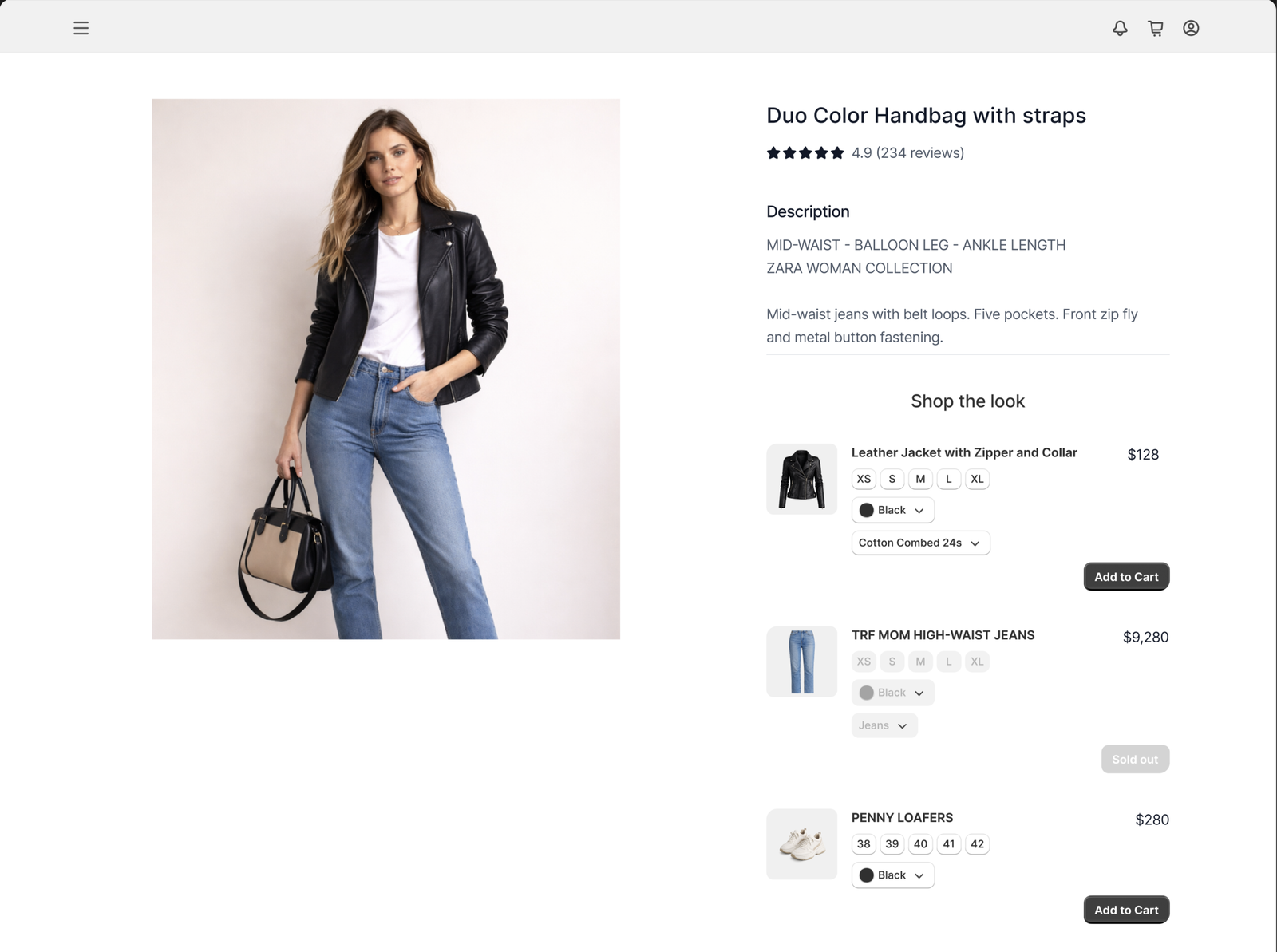
List is supposed to display on the side of the product page, below the buy buttons and short description.

Example:

List Example

The other layouts are shown below the main area and product images.

Click the “live Demo” button to see an example of how it will look and behave.

If you like a layout, click “Choose this layout”.

Lookbook Settings

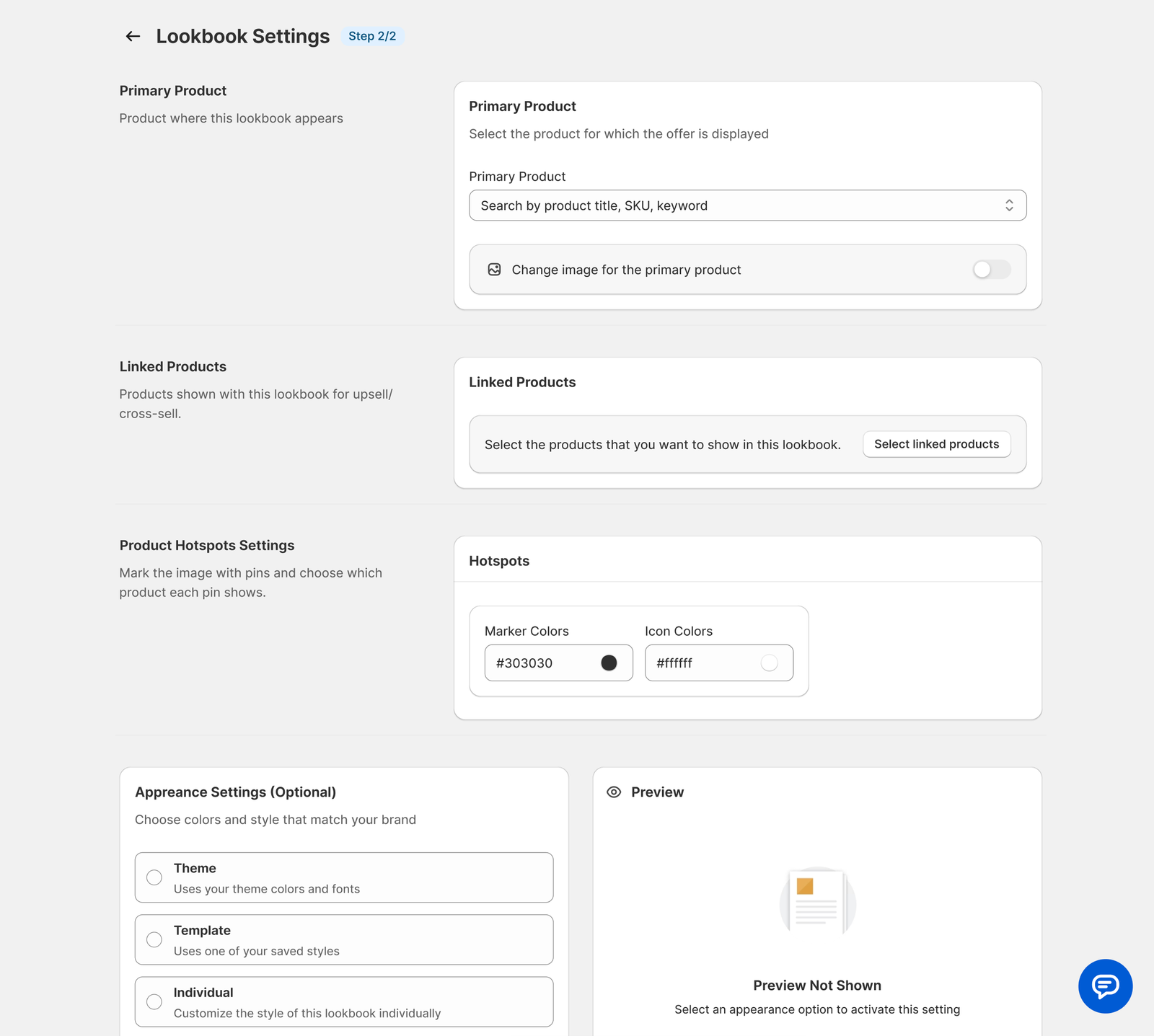
In the second step we can first select the primary product. This is the product that will show this lookbook.

Next you can select the linked products. These are the products that are shown within this lookbook to complete the look.

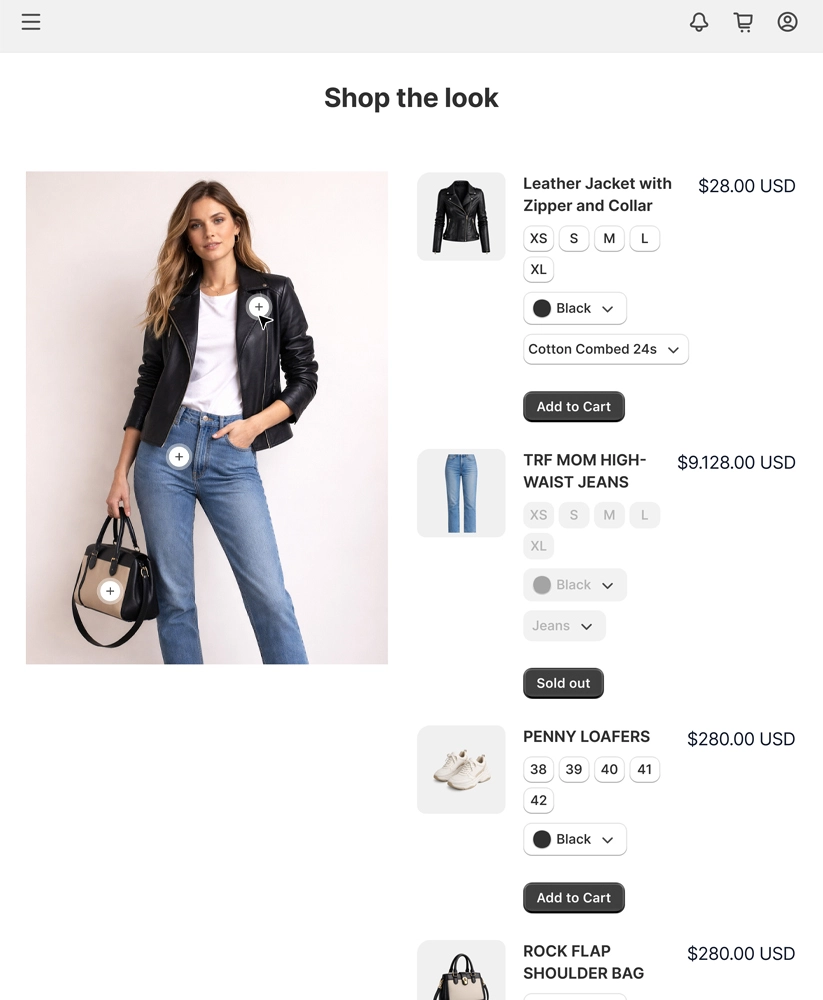
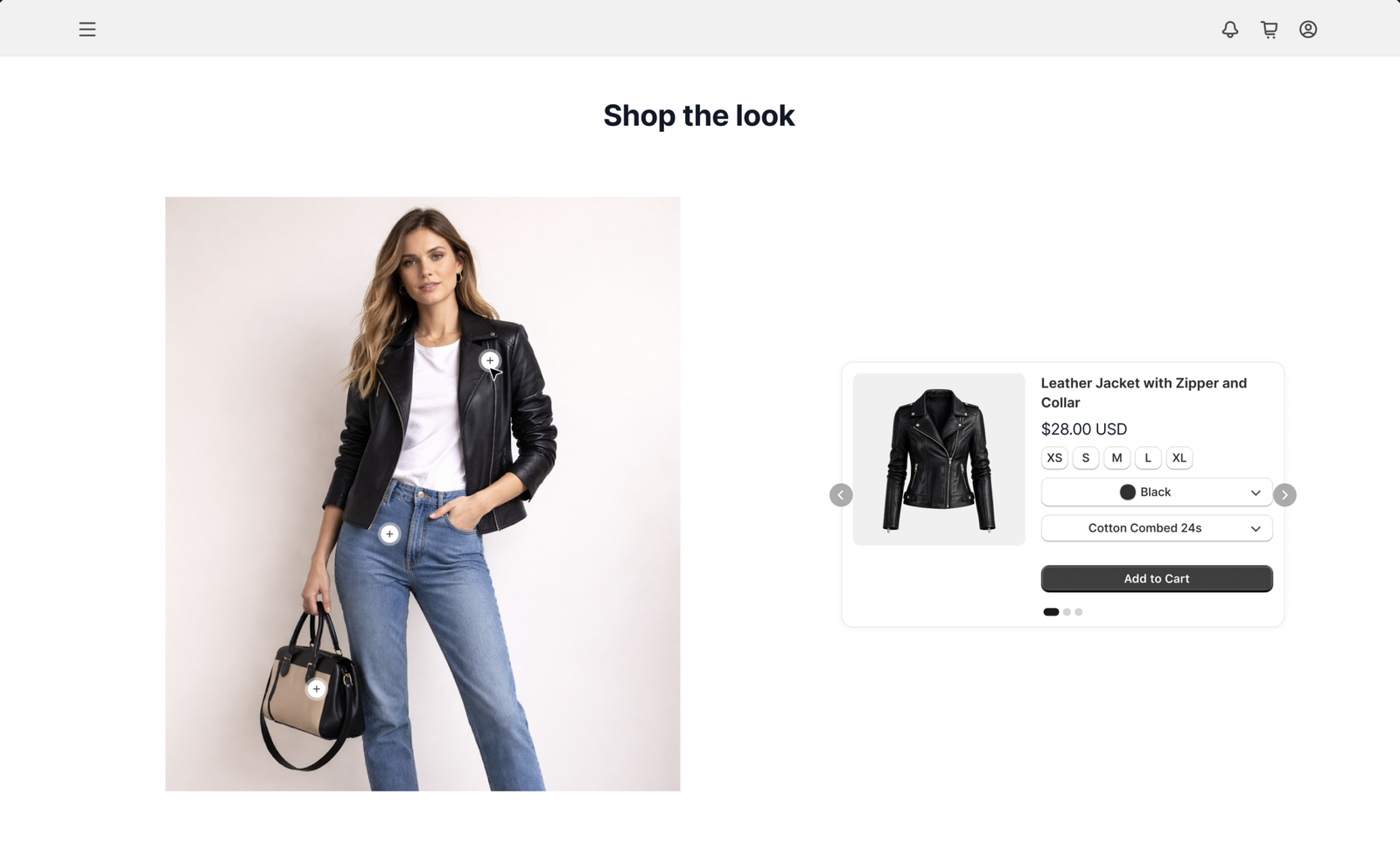
If you selected product hotspots as the layout, some settings for this will appear.
You can choose how the hotspot looks.

Then you can select the position of each product’s hotspot by moving the hotspot up and down and left and right. This way you can place the clickable hotspots on the right parts of the image.

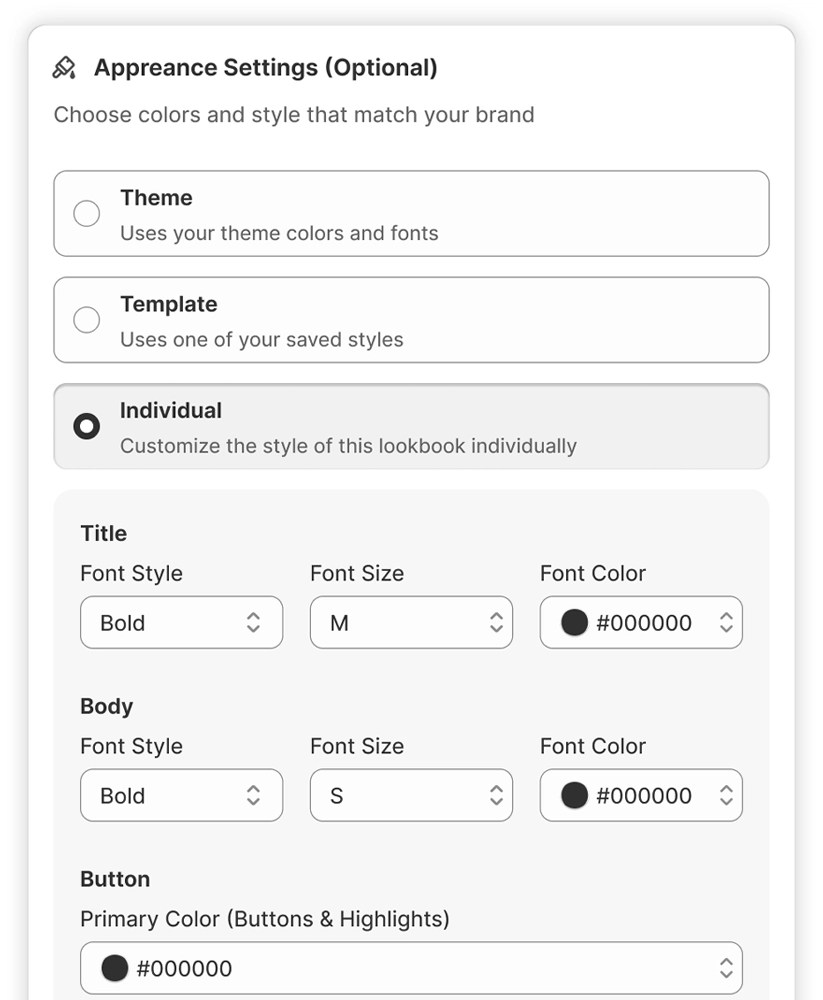
Lastly you can do some appearance settings.
You can choose to use your theme colors and fonts. The app will then use those in your lookbook.

You can also choose “individual” to make specific settings for this lookbook.

You’ve got the option to save these appearance settings as a template and reuse them on other lookbooks. Just click on “save as template”, give it a name and click save.

General Settings

General Settings

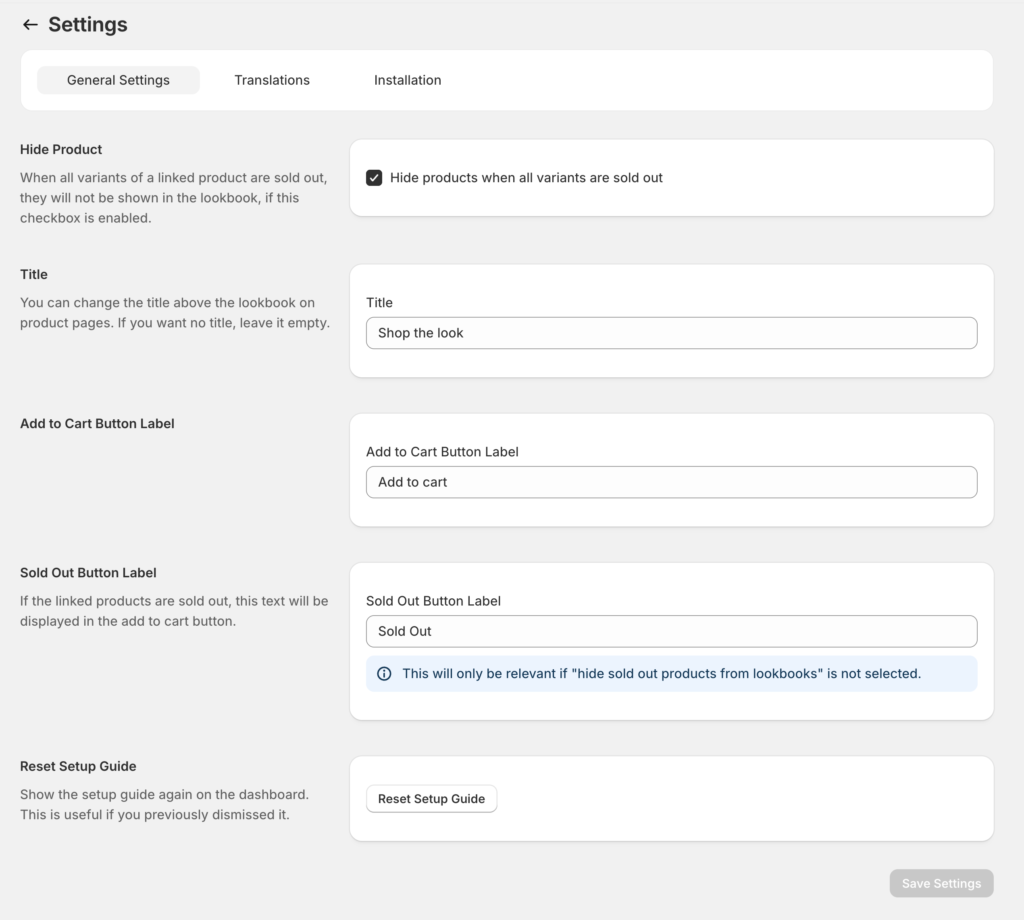
Hide Products:
When all products of a linked product are sold out, the product will not be shown if you enable this checkbox. If it’s not selected, the product will show, but it will say “Sold Out” or whichever string you select for the “Sold Out Button Label” at the end of the general settings.

Title:
Above the lookbook will be a title. By default it says “Shop the look”. If you don’t want a title you can delete the text here. You can also change the text to something else.

Add to cart button label:
The button that the visitors have to click to add one of the linked products to their cart says “Add to cart” by default. If you want it to say something else, you can change it here.

Sold out button label:
If a linked product is sold out and the hide products checkbox is not selected, this text will be shown instead of “add to cart”. You can change the text.

Translation

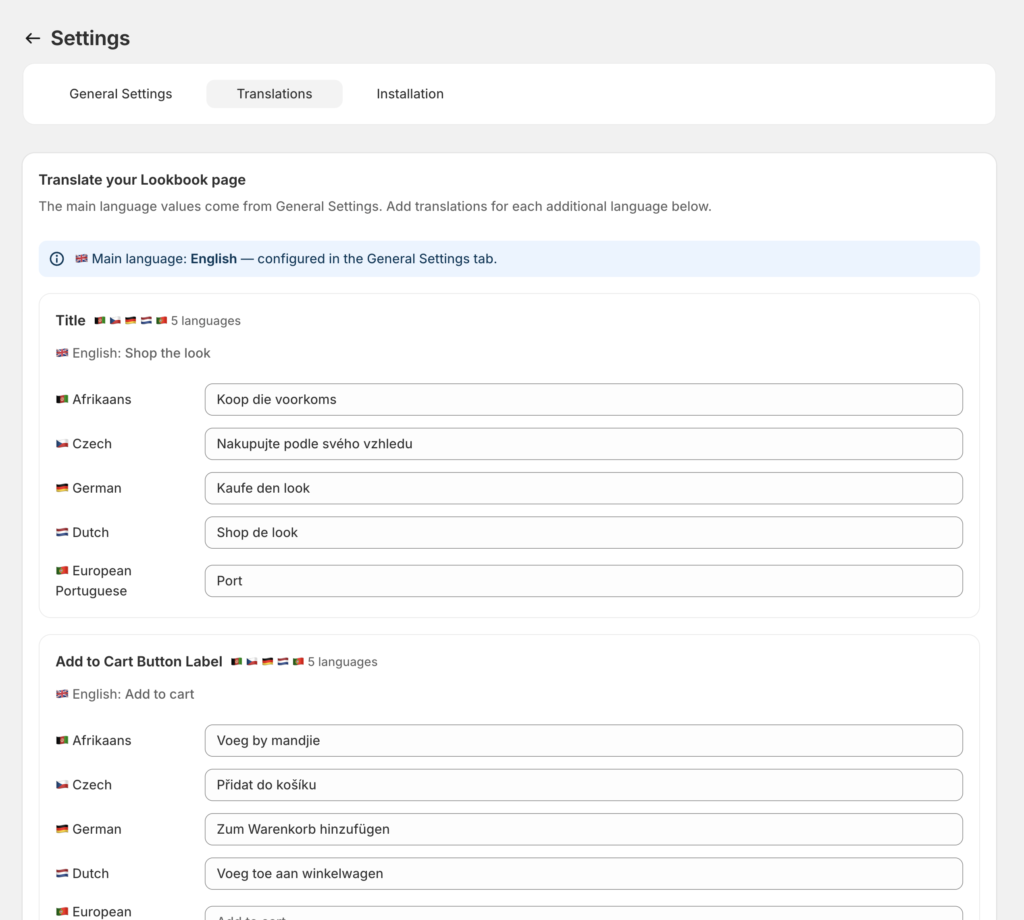
You can translate the lookbooks to multiple languages.
This works with Shopify Markets or if you only have one market but offer the page in multiple languages.

Go to the shopify settings at the bottom left > open Languages > Click Add Language > Choose the language you want to add > Click next > Assign the language to the domain it should show on. If you have multiple domains you can choose from one of them. If you have one, choose the default > Click “Done”. > Next to the language click the three dots > Publish > Publish.

Now go to General Settings in the Lookbook app > Open Translations > Change the words for the new language > Click save.

If someone opens the store in the right market or chooses a different language in the language selector of the store, the app will show the lookbooks with the right language.

Installing the Lookbook in your shop

Adding the lookbook to the product page:

You can add lookbooks to your product page. Follow the steps below or watch the explainer video.

Steps:

1. Go to Online Store → Customize.
2. At the top, select Products → Product page template (usually the Default product template).
3. In the left sidebar, click Add section → Apps.
You will see two Lookbook app blocks:

Lookbook – Wide
This is used for the layouts: Product Hotspots, Image Left, Image Right, Carousel, Full Width List.
Recommended placement: Below the main product content.

Example:

Lookbook – Compact
This app block is used for the “List” layout.
Recommended placement: Under the add-to-cart area.

Example:

List Example

We recommend adding both app blocks to your product page template.
Depending on the Lookbook layout you selected inside the app, the correct block will automatically appear, and the other one will stay hidden.

If a product has a Lookbook → the correct block is shown.
If a product has no Lookbook → nothing will appear and your product page remains unchanged.

Please Note:

If you don’t see a preview in the Theme Editor, that’s normal.
The block only shows when the selected product has a Lookbook.

4. Save your changes. That’s it.

Note: We try our best to make it look good with most themes by default. We tested the app a lot but it’s possible that sometimes errors happen. If it looks off contact our chat support, we’re happy to help quickly.
Add Lookbooks to Other Pages (Homepage, Landing Pages, etc.):

You can add lookbooks to pages like the homepage or landing pages. Follow the steps below or watch the explainer video.

Steps:

1. Go to Online Store → Customize.
2. At the top, choose the page you want to edit (e.g. Homepage or a custom page template).
3. In the left sidebar, click Add section → Apps.
4. Select Lookbook – Standalone.
5. In the block settings on the right, choose which Lookbook you want to display.
6. Click Save.

Note: We try our best to make it look good with most themes by default. We tested the app a lot but it’s possible that sometimes errors happen. If it looks off contact our chat support, we’re happy to help quickly.